First run
nParse+ lives in your system tray — the tray icon toggles every window and holds Settings. On first launch, two things need to be true: the game is writing a log, and nParse+ is watching the right folder.
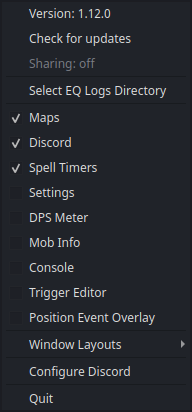
1. Turn on logging in game
In EverQuest, type:
/log on
The game starts writing eqlog_<Character>_<server>.txt into the Logs
folder of your EQ install. Logging stays on between sessions.
2. Pick your EQ Logs directory
If nParse+ doesn't auto-detect it (default: ~/Games/EverQuest/Logs), pick
it via tray → Select EQ Logs Directory, or in
Settings → General.
Where that folder is depends on how you run EQ:
The Logs folder is inside the wrapper's virtual drive, e.g.
~/Library/Application Support/CrossOver/Bottles/<bottle>/drive_c/...
or wherever your wrapper keeps its drive_c. Find your EverQuest
install inside it; Logs sits at the install root.
Logs is directly inside your EverQuest install folder, e.g.
C:\P99\EverQuest\Logs.
Inside the WINE prefix, e.g.
~/Games/everquest/drive_c/EverQuest/Logs (Lutris) or
~/.var/app/com.usebottles.bottles/... (Bottles Flatpak). On a
Flatpak install of nParse+, EQ installs outside your home directory
need a one-time permission grant — see
the Flatpak guide.
nParse+ always follows the newest log file in the folder, so switching characters just works — camp, log in the other character, and the overlays follow.
3. Check it's alive
Open the Console window from the tray and say something in game — the line should appear immediately. If it does, everything downstream (timers, triggers, maps) is live.
4. Make it yours
- Character profile: nParse+ creates a per-character profile when it first sees a log. Set your class and level in Settings → Character so spell durations are calculated correctly.
- EQ install directory (optional, Settings →
General): lets nParse+ read your real
spells_us.txt(instead of the bundled copy) and enables the Night Vision fix, Friends sync, and the Macro Editor. - Windows: toggle overlays from the tray; drag them into place (they're frameless — hover to reveal the title bar). See Windows & Overlays for tips, including the Event Overlay positioning flow.
- Sharing: to see other players' dots on the map, enable location sharing — see Sharing & PigParse.
Where settings live
Everything persists to settings.json in your platform config directory:
| Platform | Path |
|---|---|
| macOS | ~/Library/Application Support/nparseplus/ |
| Windows | %LOCALAPPDATA%\nparseplus\nparseplus\ |
| Linux | ~/.config/nparseplus/ (Flatpak: ~/.var/app/io.github.prokopto_dev.nparse_plus/config/nparseplus/) |
Inside that folder:
| Path | Contents |
|---|---|
settings.json |
Every setting in the app |
plugins/ |
Installed add-ons — only used if you enabled them; Open Plugins Folder on the tray menu and in Settings → Plugins opens exactly this |
plugins/trash/ |
Uninstalled add-ons and their data, moved aside rather than deleted |
plugin-data/<plugin-id>/ |
Each add-on's private storage, one folder per plugin |
An old nParse nparse.config.json is
migrated automatically on first run.