Windows & Overlays
Everything in nParse+ hangs off the system tray icon — there is no main window. The tray menu toggles each window, shows sharing status, offers updates, and holds Settings.
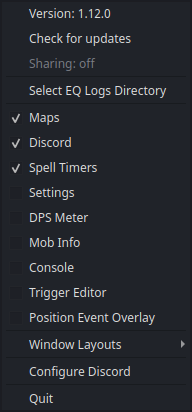
The tray menu
Click the tray icon to open the menu. Top to bottom:
| Entry | What it does |
|---|---|
| Version: X.Y.Z | The running version. Click to open the releases page. When an update is available this reads Install update vX.Y.Z and opens the update dialog instead. |
| Check for updates | Checks GitHub for a newer release on demand and reports back either way — the update dialog if one is found, or a "you're on the latest version" notification. |
| Sharing: … | A read-only line showing your current location-sharing state (off until you enable it). |
| Settings | Opens nParse+ Settings. Pinned to the top group rather than sitting among the window toggles, and deliberately not checkable — it is the app's primary configuration surface, not one more overlay. |
| Select EQ Logs Directory | Point nParse+ at the folder EQ writes logs to (same as Settings → General). |
| Maps · Discord · Timers · DPS Meter · Mob Info · Console · Trigger Editor · Macro Editor · Character Dumps | One checkable toggle per window — a check means the window is shown. These are the windows detailed below. |
| Position Event Overlay | Enters the Event Overlay's drag-and-resize positioning mode so you can line it up over the game. |
| (add-on block) | Only present once add-ons are enabled: a divider, then one toggle per window a plugin contributed, then Open Plugins Folder (which reveals the folder nParse+ scans). Fenced off so an add-on's window is never mistaken for one of the app's own. |
| UI Skin ▸ | Pick the skin every window and overlay wears — Duxa, Velious plate, or Ledger. Applies live, so you can change one mid-fight; Appearance… at the bottom of the submenu opens the full page. |
| Window Layouts ▸ | Save, apply, and manage named position/size presets (Save Current Layout, Reset Window Positions, and per-layout Apply / Replace / Rename / Delete). |
| Configure Discord | Opens the legacy Discord overlay settings. |
| Quit | Exits nParse+. Windows you left open reopen automatically next launch. |
The windows
| Window | What it shows |
|---|---|
| Timers | Buff/debuff/song countdowns, grouped per target |
| DPS Meter | Per-fight damage breakdown and trailing DPS |
| Maps | Zone map, your position, other players, NPC search, spawn timers |
| Mob Info | The last-considered mob: respawn, loot, prices |
| Event Overlay | Full-screen trigger alerts, countdown bars, CH lanes |
| Console | Raw log scrollback (great for debugging triggers) |
| Trigger Editor | Browse and edit built-in and custom triggers |
| Macro Editor | Edit, copy, and share a character's in-game macros |
| Character Dumps | Stored /outputfile inventory and spellbook snapshots, per character |
| Discord Overlay | Discord voice channel over the game (legacy) |
Working with frameless overlays
Overlay windows are frameless so they sit cleanly over the game:
- Hover near the top to reveal the title/menu bar.
- Drag anywhere on the window body to move it.
- The ☷ button in the hover bar toggles a native window frame on and off (handy for resizing).
- Per-window always-on-top, opacity, and click-through live in Settings → Windows. Click-through lets game clicks pass straight through an overlay — the window then ignores the mouse completely, right-click menus included, so turn it off again from Settings when you need to interact with it. The tool windows you drive with the mouse (Console, the two editors, Character Dumps) don't offer it; that page says which do.
Keep EQ windowed
Overlays can only draw over the game when EQ runs in windowed or borderless mode, not exclusive fullscreen. This applies on every platform.
Window layout presets
Tray → Window Layouts saves and applies named position/size presets across every window (including the legacy Maps and Discord windows). Typical use: one layout for grouping, one for raids, one for your second monitor. Saving with an existing name overwrites it after confirmation.
In-game chat commands
You can toggle any window without alt-tabbing by saying (any chat channel, even one nobody hears — an in-game macro works great):
toggle_dps show_maps hide_console
The pattern is show_, hide_, or toggle_ plus the window key: maps,
spells (the Timers window — the key predates the rename and
stays put so existing macros keep working), dps, mobinfo, console,
discord, triggereditor, macroeditor, or dumps. Only messages you
send count — a groupmate can't blank your overlays.
Plugin windows answer to their own key too: toggle_<plugin-id>_<window-key>
unless the add-on declared a different one (see the plugin
API). A key nothing answers
to is simply ignored.