Settings → Advanced
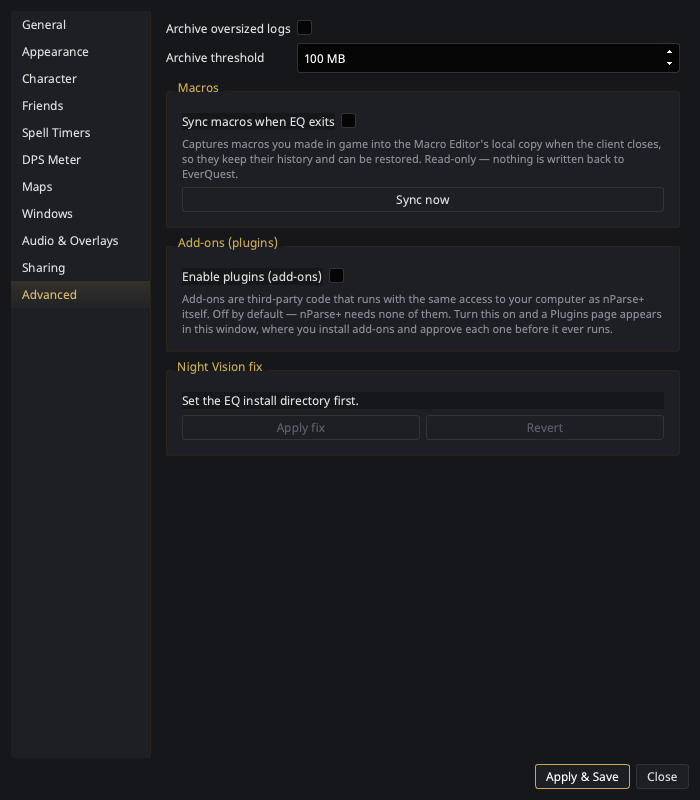
Log archiving
| Setting | What it does |
|---|---|
| Archive oversized logs | EQ log files grow forever (the game only appends). With this on, nParse+ copies an oversized log into an archive/ folder beside it and then empties the original in place, so the game keeps writing to the same file from the top. |
| Archive threshold | The size (MB) at which a log gets archived. |
Why it empties the file instead of moving it
The log being archived is, by definition, the one EQ is still writing — it's the one that grew. Moving it would work on Windows, which refuses to move a file the client holds open, but on macOS and Linux the move succeeds, EQ keeps writing into the file at its new path, and nParse+ is left with no log to follow. Copying the contents out and truncating in place is what log rotators do for the same reason: the client's open file keeps working and its next line lands at the top of the empty file.
Macros
| Setting | What it does |
|---|---|
| Sync macros when EQ exits | Off by default. When the EQ client closes, nParse+ re-reads your character ini files and folds any macros you made or changed in game into the Macro Editor's local copy. |
| Sync now | Runs that same scan immediately, without waiting for the client to exit. |
The status line below the toggle reports the last sync — when it ran and how many macros were new, changed, or missing from the game files.
Read-only
Sync only ever reads your EQ directory and writes nParse+'s own copy. It never writes macros back into the game, so it can't overwrite anything you did in game. Putting a lost macro back is still a deliberate Restore from local copy click in the Macro Editor.
Requires the EQ install directory (General). Syncing happens on the client-exit edge rather than on a timer, so it never reads the files while the game has them open.
Add-ons (plugins)
| Setting | What it does |
|---|---|
| Enable plugins (add-ons) | Off by default. Turns on the whole add-on subsystem: a Plugins page appears in this window, an Open Plugins Folder entry appears on the tray menu, and nParse+ starts scanning for installed add-ons. |
nParse+ needs no add-ons — everything documented on this site works without them. The switch exists so other people can build things on top of nParse+; if that isn't you, leave it off and you'll never see the feature again.
Turning it on takes effect at the next launch (nParse+ says so, and offers to open the plugins folder). While it is off, nothing plugin-related is loaded — not the host, not the installer, not the manager page.
Add-ons are third-party code
A plugin runs with the same access to your computer as nParse+ itself, and nParse+ cannot verify what one does. Every add-on has to be approved by you the first time it loads, before it runs. Install only from authors you trust — see Plugin security & trust.
Once enabled, everything else happens on Settings →
Plugins. To start nParse+ with add-ons forced off — after one
breaks startup, say — set NPARSEPLUS_NO_PLUGINS=1 in the environment;
it can only turn plugins off, never on.
Night Vision fix
Apply/revert buttons for the Night Vision fix — the community shader/sky fix extracted over your EQ install with automatic backups. Requires the EQ install directory (General); quit EQ before applying. The status line shows whether the fix is currently applied.