Settings → Windows
A grid with one row per window — Maps, Discord, Spell Timers, DPS Meter, Mob Info, Console, Trigger Editor, Macro Editor — and three columns:
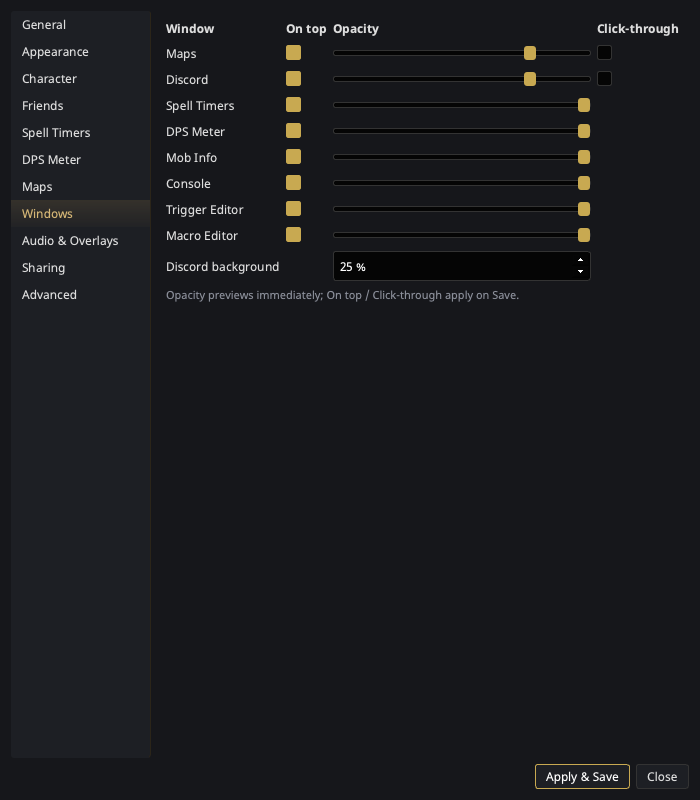
| Column | What it does |
|---|---|
| On top | Keep the window above the game (what makes an overlay an overlay). Applies on Save. |
| Opacity | Window transparency — previews live as you drag the slider. |
| Click-through | Clicks pass straight through to the game. Great for HUD-style overlays; remember you'll need to come back here to turn it off, since you can no longer click the window. Applies on Save. |
The Discord row has an extra Discord background opacity slider, which controls the overlay's backdrop separately from the window itself.
Plugin windows
If you run add-ons, any window they open gets its own
row too, below a Plugin windows separator and labelled
<add-on name> — <window title>. They carry On top and Opacity and
work exactly like the built-in rows — nothing extra to install, and nothing
the add-on's author had to do.
They have no Click-through box, deliberately: a click-through window can't be clicked, and unlike Maps and Discord an add-on window has no menu bar to reach for once it stops responding.
Two things worth knowing:
- Only add-ons that actually opened a window this session get a row. One you disabled, one that errored on load, one you uninstalled — none of them appear. Their saved opacity isn't discarded, it just sits in your settings until the add-on comes back. Because nothing hot-loads, an add-on you enabled a moment ago only shows up here after the restart that starts it (Settings → Plugins).
- An add-on can only offer a row for a window it built on the nParse+ overlay base. Most do, since that is what the SDK hands them. One that builds a plain Qt widget instead still opens from the tray, but nParse+ has no opacity or on-top state to give you for it.
Window positions aren't set here — drag the windows themselves, and use tray → Window Layouts to save named position presets (Windows & Overlays).