Mob Info
The Mob Info overlay shows everything nParse+ knows about the last mob you
/considered: its name, its zone, its respawn time, whether it's a notable
(named) spawn, a pet indicator — and the mob's whole
P99 wiki page: the stat block, where it
spawns, what it drops, and the page's picture.
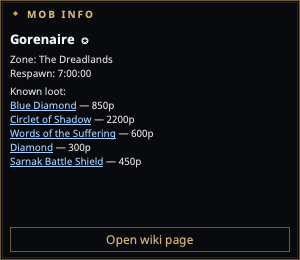
Open it from the tray → Mob Info, then /consider (or just /con) any
mob in game.
What you see
- Name and zone, with a notable flag when the mob is a named/rare spawn worth camping.
- Class, race and level, under the name.
- Stat block — HP, AC, damage per hit, attacks per round, attack speed, run speed and aggro radius. Only the rows the wiki page actually states appear; P99 pages vary, and many trash mobs have no page at all.
- Spawn location — the page's whole
locationfield, so a mob with three spawn points shows all three (the map still plots the first). - Respawn time from the per-NPC database (ported from EQTool, covering 121 zones) — the same data that drives respawn timers — and, on a separate line, what the wiki says. Both, because they answer different questions: the database always produces a number (falling back to the zone's default and then to a global 6:40), so it cannot tell you it has never heard of this NPC. A wiki saying "7 Days (+/- 8 Hours Variance)" next to a 6:40 default is telling you something.
- Specials, factions, opposing factions and related quests, each linking to its own wiki page.
- The picture from the mob's wiki page, when it has one.
- Known loot — the drop table, with PigParse's 6-month weighted-average
WTS prices on the items it has seen traded, and the wiki's rarity
(
Common,Rare,Ultra Rare,Always) beside each. Each row links to its item page. - Pet indicator when the target is another player's pet (so you don't waste a camp check on it). A pet is never looked up on the wiki.
- Open wiki page button for the mob itself.
Where the loot list comes from
Two places, merged into one list:
- PigParse supplies prices, and needs PigParse sharing mode to be on.
- The wiki supplies the drop table itself and each item's rarity, and needs nothing at all.
When both know an item it is one row: the price is PigParse's, the rarity is the wiki's. Priced rows sort to the top, because the list is clipped and a price is the thing you cannot get anywhere else in the app. With sharing off you still get the full drop table — just without prices.
Settings
Settings → Audio & Overlays → Mob Info carries two toggles, both on by default and both applied without a restart:
- Look up wiki details — whether nParse+ contacts wiki.project1999.com at all. One request per mob you consider, cached for the session; the window's own refresh never fetches. Turning it off leaves the name, the zone and the respawn timer.
- Show mob picture — downloads the page image once at thumbnail size and keeps it in the local cache directory.
Notes
- Window position, opacity, and click-through persist in Settings → Windows. The body scrolls, so the window can be as small as you like without losing the picture or the drops.
- Not every page carries every field. Respawn time and attack speed are the most commonly missing; a mob with no wiki page at all still shows name, zone, respawn and the notable flag from local data.
- If the detail line says “Wiki: unavailable”, nParse+ could not reach the
wiki; it is different from a mob whose page simply has no details. Check
your connection and
nparseplus.logfor the network error, then consider the mob again. A failed request is deliberately not cached, so recovery does not require restarting the app.