Maps
The Maps window draws the community Brewall/P99 map for your current zone with your live position on it — nParse's signature feature, extended with EQTool's NPC database.
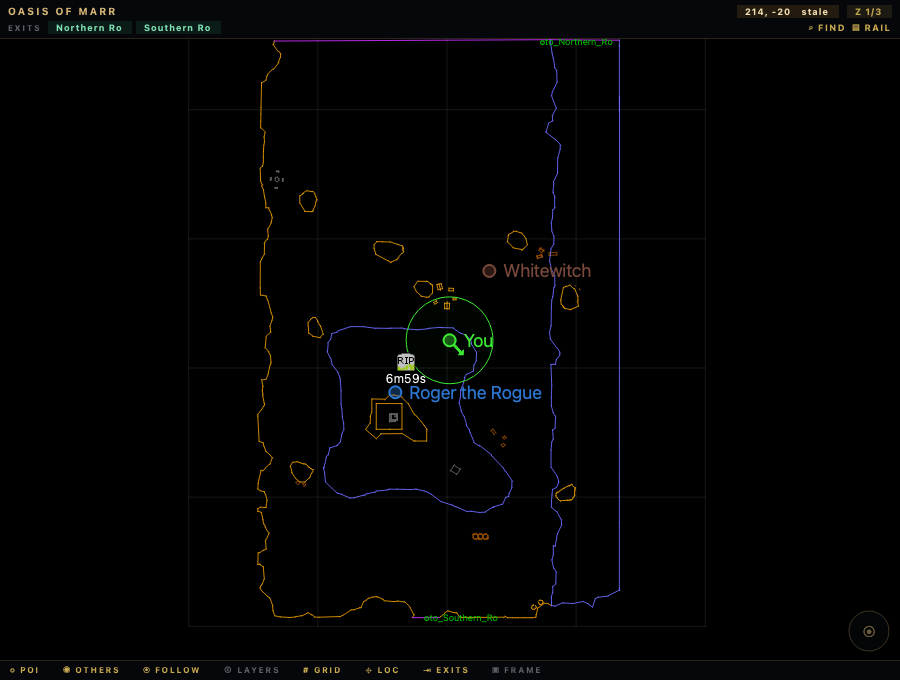
Open it from the tray → Maps. The map follows your log: zoning switches
maps automatically, and each /loc you type updates your marker (with a
direction arrow inferred from your movement).
Your position and others'
- You are the marker with the direction arrow. Type
/locin game to update it (many players bind/locto a movement key or use a hotbar macro). - Other players appear as colored dots when sharing is on — theirs and yours flow over the PigParse network (interoperating with EQTool users) or your own nparse websocket server. Names hover next to dots; a per-map toggle can hide others' dots (Settings → Maps).
- Tracking radius — Druids, Rangers, and Bards get a circle showing their tracking range (set your Track skill in Settings → Character).
Chrome that gets out of the way
The map spends its pixels on the map. Everything else is summoned:
- Header and toolbar fade in when the pointer is over the window and
step back out when it leaves. The header names the zone, your last
/locwith its age, the Z band you are on, and the zone's exits (click one to flash it). The toolbar carries the display toggles in words — POI, OTHERS, FOLLOW, LAYERS, GRID, LOC, EXITS, FRAME — plus a REC TRAIL light while a path recording is running. - Edge tabs name each exit on the border you would leave through, while the pointer is away. They stand down once the header is up, since it names the same doors in words.
- The recenter puck sits bottom-right: muted while you are centred on
yourself, lit with a bearing arrow and distance once you have panned
off. Click it to come back — no extra
/locneeded. - The rail (Tab) lists what the zone actually has: its respawn timer, its zone lines, your markers, who is sharing with you, and any trail being recorded. Sections with nothing in them are not shown rather than shown empty.
Turning the exit signposting off
A zone with six zone lines gets six edge tabs on your border plus chips in the header. EXITS on the toolbar turns all of it off at once — the edge tabs, the header chips and the rail's ZONE LINES section — and it is on by default.
NPC search and the notables list
- Press Ctrl+F (or ⌕ FIND in the header) to open the find palette. It searches map labels, the zone's notable NPC list, and — for anything not found locally — a live P99 wiki lookup. Click a result to flash its location on the map. Esc closes it.
- An empty palette lists the current zone's notable NPCs with their respawn times.
Spawn points, waypoints, and corpses
- Right-click the map to create a spawn point or waypoint at that spot. Spawn points start a respawn countdown you can see on the map; markers persist across zone changes and restarts.
- Corpse waypoints are dropped automatically when you die, so you can find your way back. On the nparse sharing wire, corpse locations can be shared with your group.
- Respawn countdowns also appear as rows in Spell Timers; see Respawn & zone timers.
Display options
Zoom with the scroll wheel; drag to pan. Ctrl + wheel steps the Z layer instead of zooming, and scrolling near a map edge nudges the backdrop — see below. In Settings → Maps:
- how the map is panned (see below)
- line/grid width and label size
- backdrop opacity and the idle fade (see below)
- z-axis fading — floors above/below you fade out smoothly, tuned per zone (enable, opacity floor, strength, fallback height)
- per-Z-layer opacity, other-players toggle
Panning
Click and drag the map to pan it. Ctrl + drag does the same thing and always has — it was the only way until nParse+ 2.10, and nothing on screen said so, so a plain drag looked like a map that would not move.
If you would rather keep the plain drag free, Pan the map with on Settings → Maps switches back to Ctrl + drag only. Either way the modifier gesture keeps working, and the setting applies without a restart.
Two places a plain drag deliberately does nothing: on the summoned chrome (you are pressing the header, not the map under it), and in the thin band along each map edge, which belongs to the backdrop wheel and to the border of a frameless window. Ctrl + drag pans from the edge band too.
Seeing through the map
Window opacity (Settings → Windows) fades the whole window — geometry, labels and dots with it — so turning the map see-through with it also dims the lines you are trying to read. The backdrop (Settings → Maps) fades only the fill behind the map; the ink always draws at full strength. Turn window opacity back to 100 and use the backdrop instead.
The map also supports path recording (record a route through a zone as you run it) via the map's right-click menu, and Load Map to view any zone's map without being there.